Building Blueprints

The highly requested feature is finally here. Building Blueprints lets you save a group of buildings and place them again with one click!
The new tool group "Building Blueprints" located at the end of your toolbar includes 3 tools: Create, Build and Demolish.
Simply select the tool, drag an area around the buildings you want to include in the blueprint. Then select a name and save it! Only buildings can be included in the blueprint. You also need to include the entire building within the area for it to be added to the blueprint. The buildings’ orientation (rotation), flip, and settings are supported! You can press the Copy Settings button to choose to include Settings in your blueprint or not.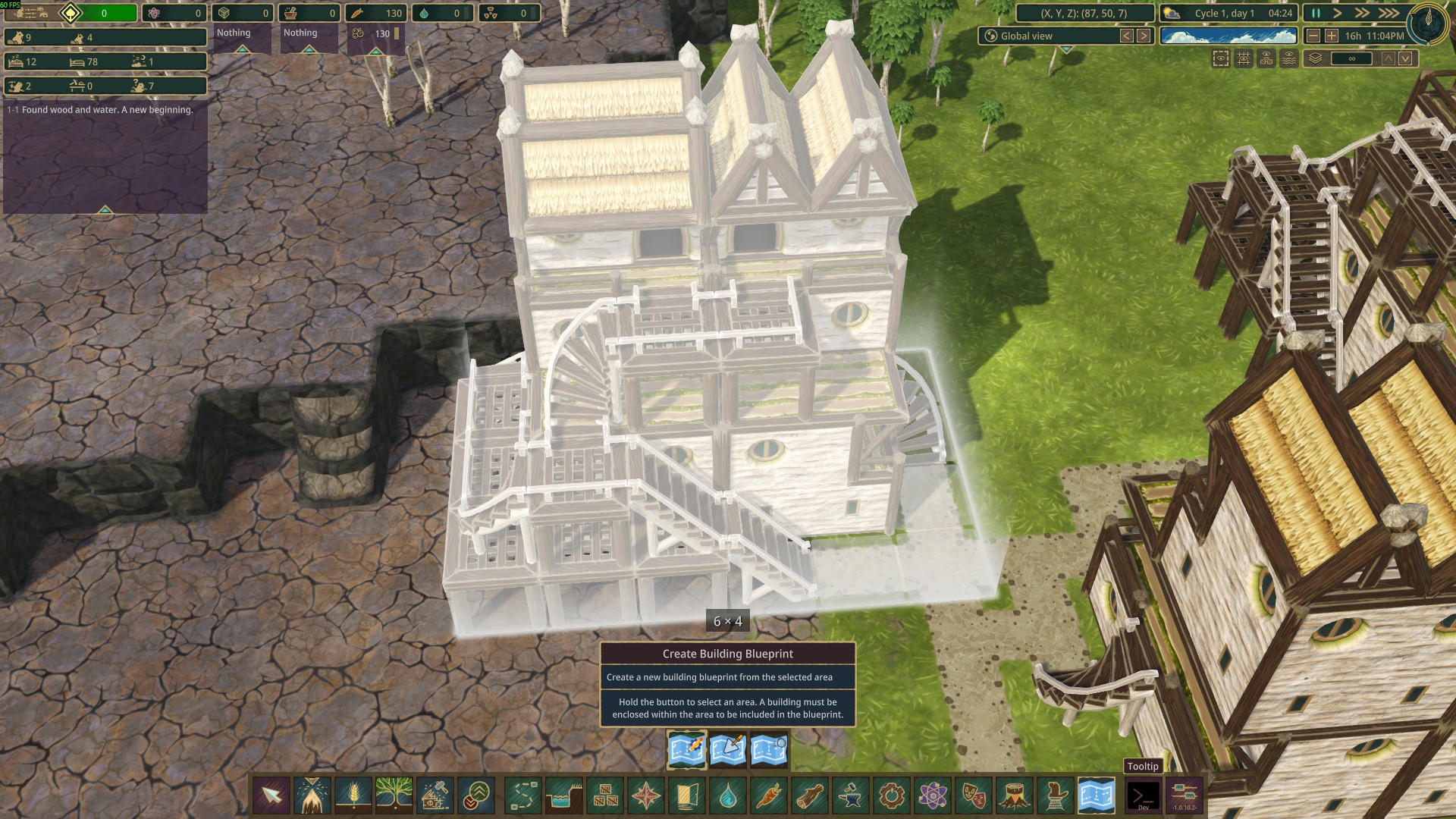
Blueprint files are just JSON files stored in your game’s Documents folder so you can easily copy and share them or even edit them manually if you want to. See the dialog below, there is a Browse button that will open the folder where the blueprints are stored.
Note:
– Terrains are not supported so if your building blocks have finished terrain blocks, they won’t be included. You can, however, include unfinished terrain blocks.
– District Centers and District Crossings are excluded from blueprints to prevent crashes.
– When selection starts with a tile with Road, you may notice certain buildings like Platforms of the same level are not selected. This is due to the game’s tool behavior when selecting. Try starting with a non-road tile.
– You can use Copy Name Too! to also copy the building’s name. If you share the blueprint, those who have that mod also get the building names too. You can also pair it with More Naming to be able to rename almost any building.
Select the Build Blueprint tool, you will be presented with the Select Building Blueprint dialog.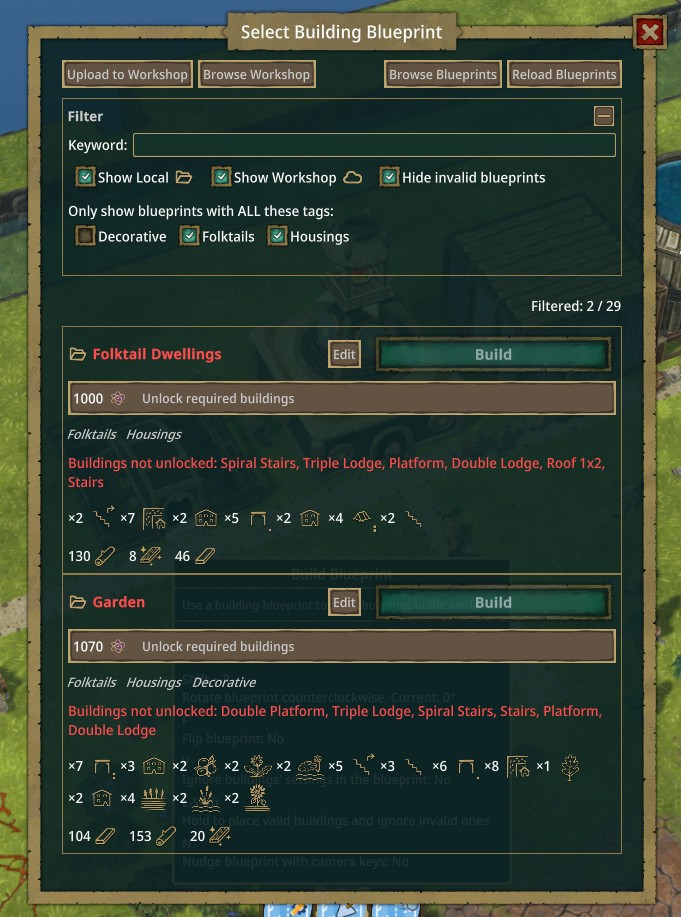
Choose the blueprint you want to place, then click the Build Blueprint button.
– You can rotate and flip the whole blueprint while placing it. Note that flipping may not be possible if certain asymmetrical buildings without flip support are included in the blueprint.
– Hold Alternate button to partially place any valid buildings and ignore invalid ones.
– Existing paths will not block paths in the blueprint.
– You can also press the Copy Settings button to choose to toggle Ignore Settings when placing the blueprint. When Ignore Settings is on, the buildings will be placed with default settings instead of the settings saved in the blueprint.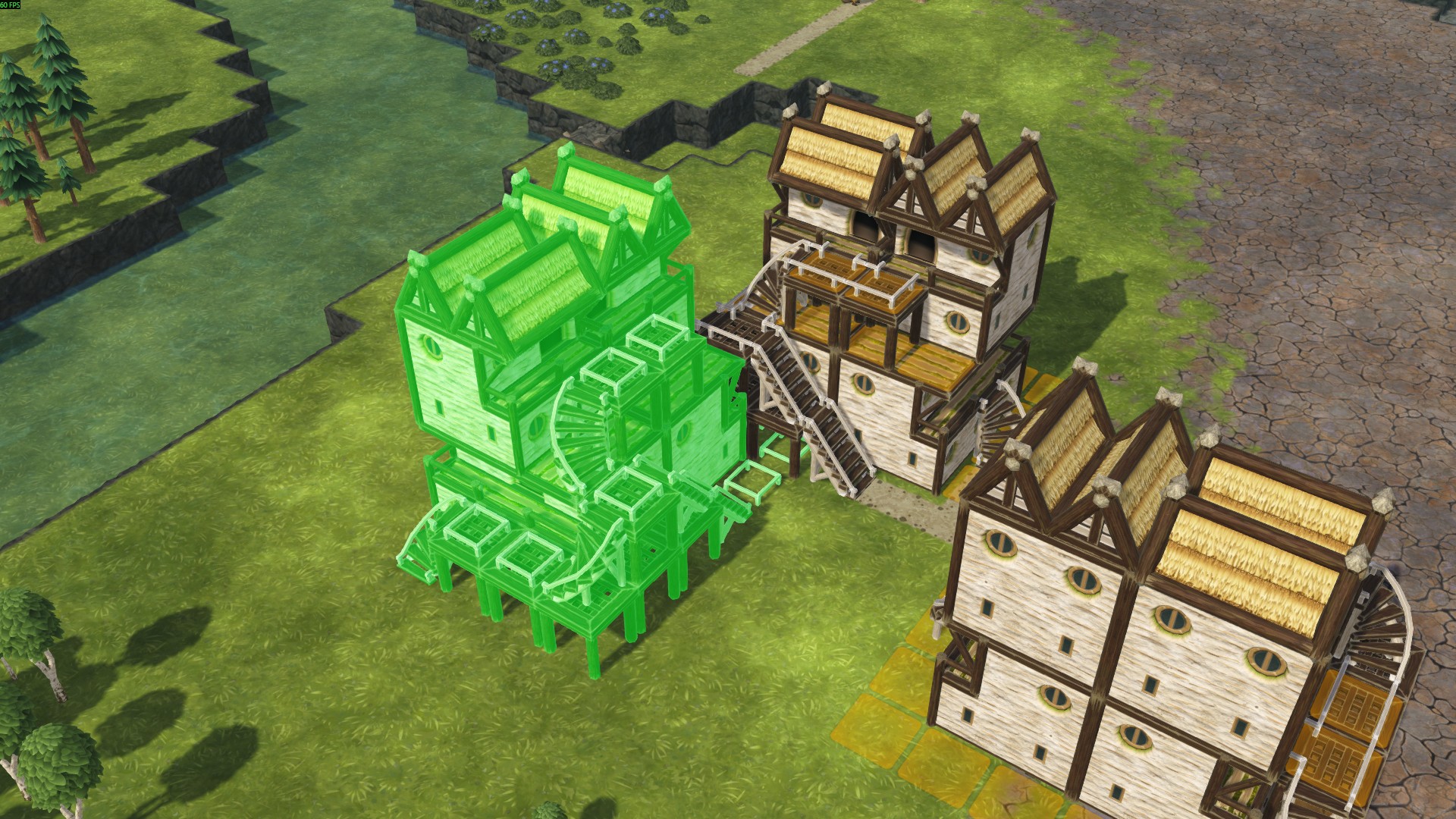
You can also nudge the blueprint: press the bindable key for Nudge (default is N) to toggle it. Then use WASD or arrow keys to move it, Q and E to move it up and down. Once you are happy with the position, click or press Enter to build.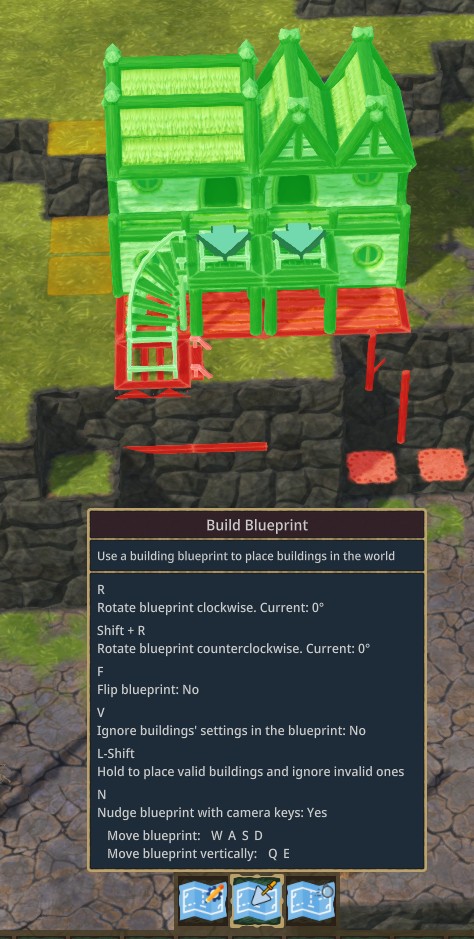
A new mode was added in v10.6.0. Use the rebindable hotkey (default Ctrl + P) to toggle it, and its state is persisted globally. In this mode, your blueprint will always be considered "invalid" and no validation is performed until you use left click or Enter. A second click on the same position will place the blueprint.
Internally, this mod validates blueprint placement by placing actual buildings and then deleting them. This may interfere with mods that change building placements.
A quick way to demolish all buildings that were placed using a building blueprint. Just select the tool and click on any building that was placed with a blueprint, and all buildings from that blueprint will be demolished. You will be asked to confirm before the demolition happens. This tool works even if you already finished some buildings, or demolished a few of them using other tools.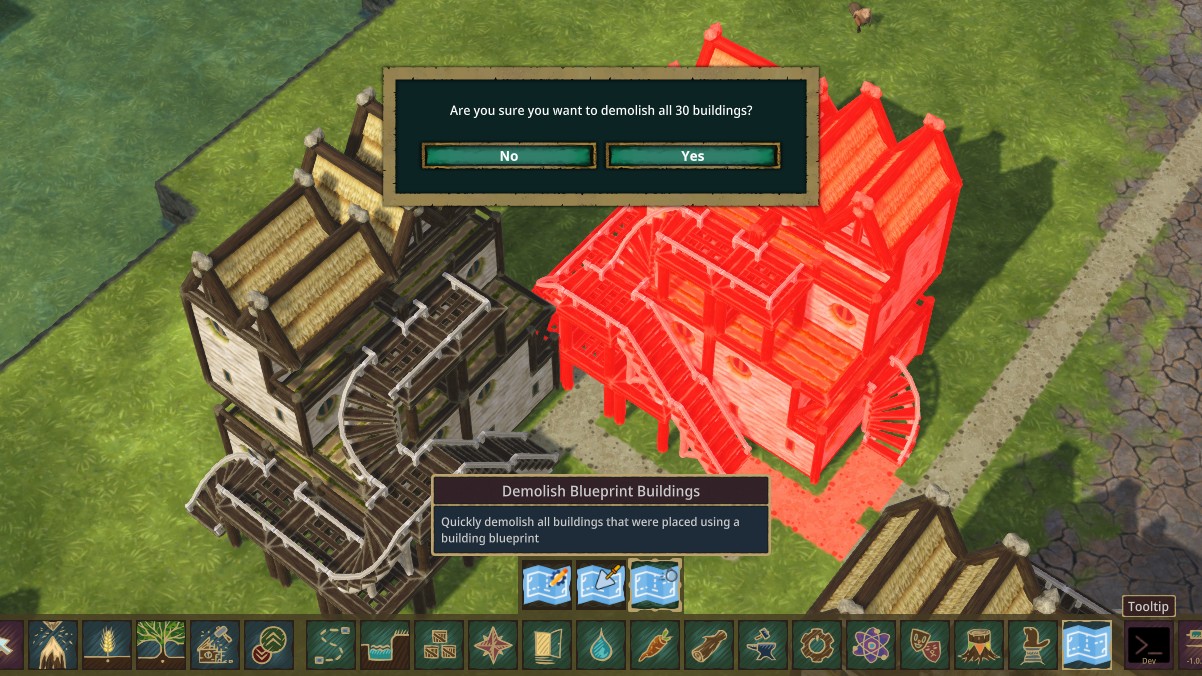
You can also subscribe to Building Blueprints Steam Workshop Support to subscribe to blueprints uploaded by other players and upload your own blueprints to share with the community! When you have the Workshop Support mod active, in the blueprint selection dialog, you will see two new buttons: Browse Workshop and Upload to Workshop.
If you use non-Steam version, others can still upload their blueprints to mod.io and you can manually place them into the "DocumentsTimberbornBuildingBlueprints" folder.
– May interfere with mods that change building placements since the buildings are invisibly placed for validation. Use Performance Mode may help.
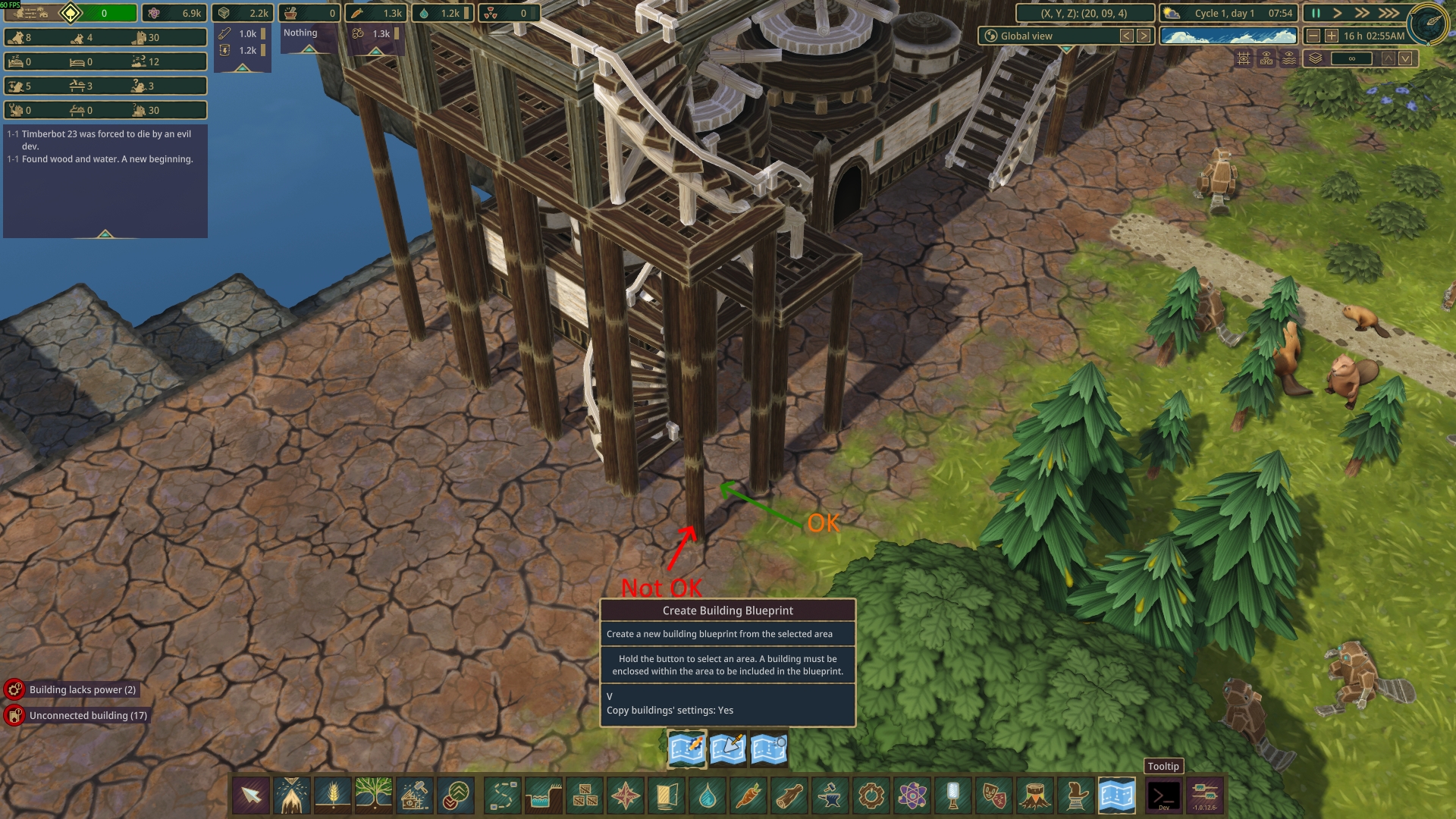
– When creating a blueprint, sometimes certain feature like Stairs or Platforms may not be included. I found out it’s due to how you started the selection due to the tool reusing the game’s selection logic. The best way to start is an empty tile or not on any building:
If you have any issue that I missed, feel free to report it in the comments or on Discord.
===
Mod source code and donation: https://github.com/datvm/TimberbornMods (feel free to use the code for anything).
Required items:
Click the title to search on this site.
Moddable Timberborn — Steam Workshop
Moddable Tool Groups — Steam Workshop

